
Creating a Meeting
In order to create a meeting, click on the "Member Meetings" option in the Back Office Menu.
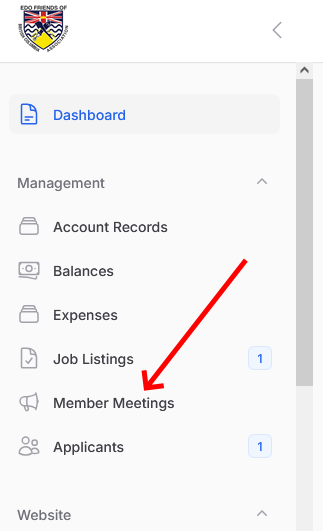
Click on the "New Member Metting" button up and right in order to get the following form:
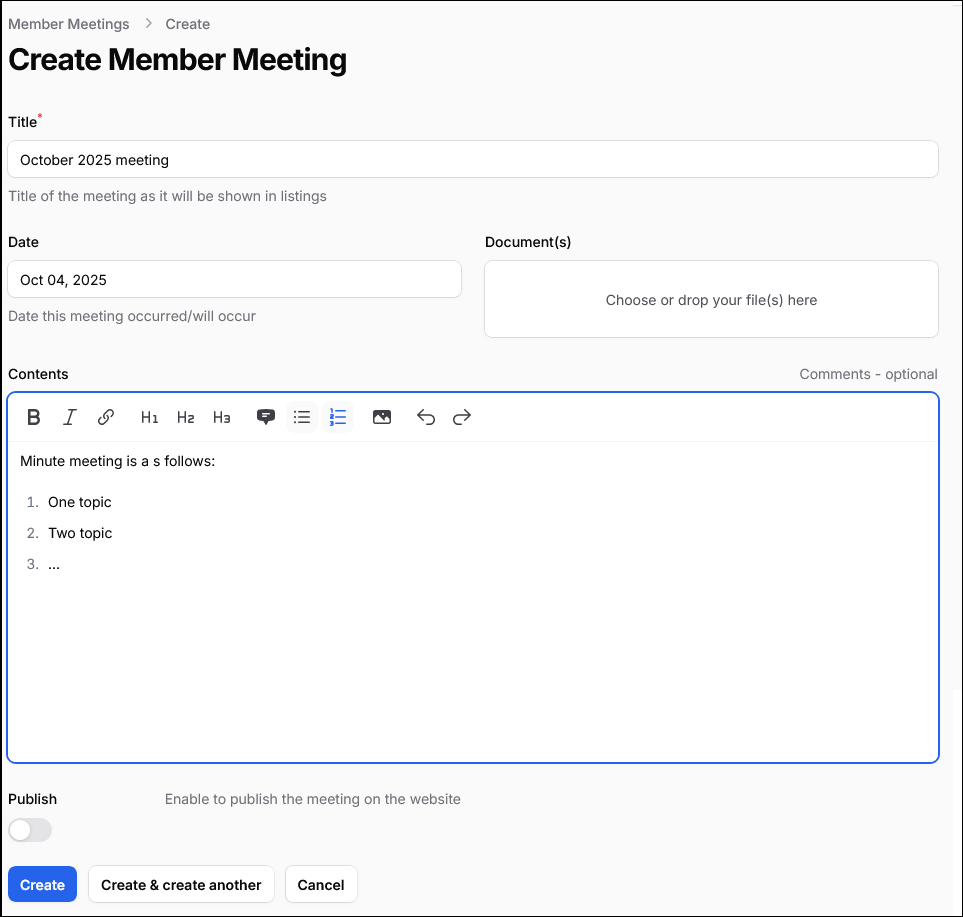
You have to complete at least the title and the date when creating a new meeting. You can optionally upload a document with the minute, or type it right in the Contents field.
When you are ready with it, you can switch ON the "publish" toggle, so the meeting is visible in the Member's area.
The next step after publishing is to send out a notification. To do that just click in the "three dots" for the attendance record and select "Send out Notification"
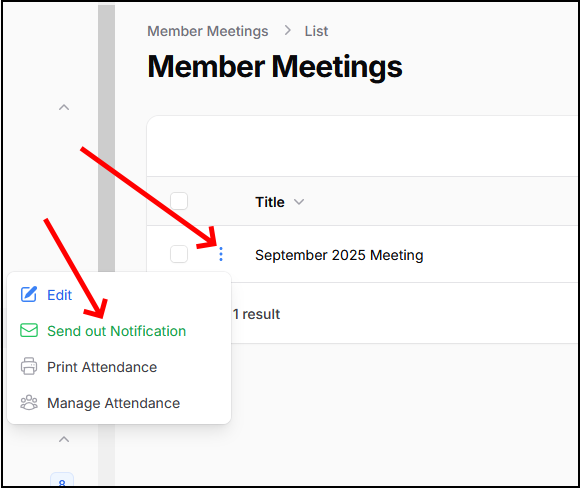
After confirming the action, the system will send one email to each of the committee members.